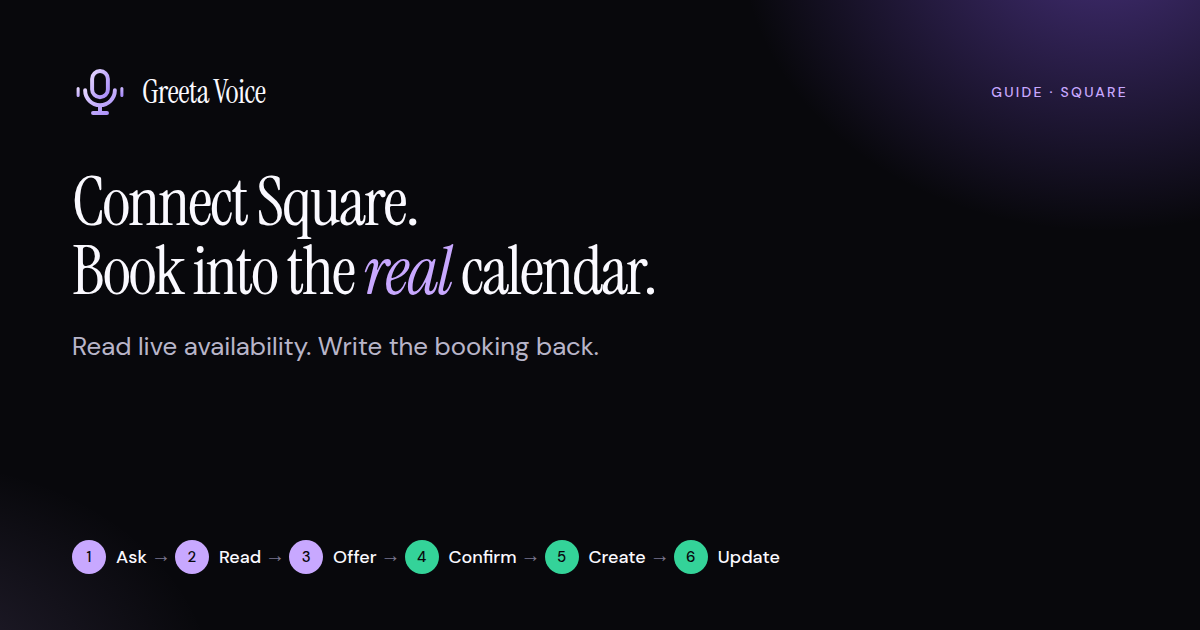
Keep Square as the source of truth
For many appointment businesses, Square is already where staff hours, services, and the day’s book live. The POS, the staff apps, and the front desk all look at that same calendar.
In that setup, an AI receptionist should sit on top of Square, not replace it. When Square is connected, Greeta queries Square before it offers a time, and it creates, changes, or cancels the appointment in Square during the same conversation. Your Square calendar stays the record the team opens in the morning. If you are not on Square, Greeta can book into its own All-in-One calendar instead. Either way, one booking system is in charge.
How Greeta reads from Square and writes back
It helps to picture two directions, because “sync” is a vague word.
Read path. A client calls or texts and asks for a service on a certain day. Greeta asks Square for live availability before it offers a slot. Open times, which staff members perform that service, and how long the service takes come from Square. The AI should not be working from a screenshot, a morning printout, or a guess.
Write path. When the caller confirms, Greeta creates the appointment in Square in that same conversation. If the client later reschedules or cancels by phone or SMS, that change is written back too. The goal is that nobody has to retype the booking after the call.
The same availability rules apply to AI SMS Booking and missed-call text-back. A text should not offer a time the phone would have been told was taken. This is two-way sync: live reads in, bookings and changes out — not a one-way export at the end of the day.
One booking mode at a time
You choose Square two-way sync or the Greeta All-in-One calendar — not both at once. If you already run the business on Square, keep it and connect Square in the Greeta dashboard under Integrations. If you want Greeta to be the calendar, use All-in-One and do not also treat Square Appointments as a second source of truth. Running two booking systems in parallel is how double-booking happens.
Google Calendar sync for staff calendars is available on supported plans, but it does not change that rule: appointment booking still has a single source of truth.
What you connect — and what still lives in Greeta
Connecting Square is done in the Greeta dashboard. There is no separate setup fee to turn on Square sync. Guided setup for your real business is normally $150 and is $0 for a limited time at your first checkout — confirm the live note on the Square page and pricing, because limited-time offers change.
A few things are still configured on the Greeta side even when Square holds the calendar:
- How the phone is answered: ring the business first, AI after hours, or AI more of the day. (Call forwarding setup.)
- Voice and SMS behavior, including that Greeta identifies itself as your automated assistant.
- Optional call recording (off by default; you control it, and it may be disabled in any state if the law requires it).
- The owner and staff experience in the web dashboard and the GreetaVoice Business app, and the client experience in GreetaBook.
- Languages: English, Spanish, Polish, Portuguese, and Ukrainian on the same line.
Payments and deposits are a separate connection. Every plan can take them through Square Payments or Stripe Connect, with rules you set — for example, deposits from new clients only. That is not the same switch as Square Appointments sync.
The free demo uses a sample business and 30 test-call minutes, with no credit card. There is no live phone number and no live integration, including Square, until you upgrade. Use the demo to learn the call flow; test real Square write-back only after Square is connected on a paid plan.
A pre-live checklist
Work through this before you forward your real number. It is dull, and it prevents most bad first days.
- Clean up the Square menu the way callers speak. If the service is named “HC M” in Square and callers say “men’s haircut,” the AI will have a harder time. Use the names people actually use, including in the languages you expect to hear.
- Check durations and who performs each service. If a cut is really 45 minutes with cleanup, the Square duration should say so. If only one person does color or a beard shave, that mapping must be correct in Square, because Greeta will trust it.
- Confirm hours, days off, and closed days in Square. A staff member who looks available in Square but is on vacation will get bookings.
- Connect Square in Greeta and choose Square as the booking mode. Confirm you are not also taking live bookings in the Greeta All-in-One calendar.
- Place a test booking from a test call or test SMS, then open Square. Check the right service, staff member, duration, and client details before any real customer uses the line.
- Test a reschedule and a cancellation the same way. The write path matters as much as the first create.
- Try a time that should be blocked. If Square shows the slot as taken, Greeta should not offer it.
- Decide the forwarding rule. Many shops let the phone ring in the business first during open hours, then use the AI when nobody can pick up, at lunch, or after closing.
If any step fails, fix the Square record or the connection before you advertise a new way to book.
What it can’t (or shouldn’t) do
- It cannot fix a messy Square setup. Wrong durations, missing staff skills, or stale hours will be booked exactly as they are. The AI does not “know what you meant.”
- It should not be the place you invent a special exception. “Just this once, overlap her lunch” is a human decision. If the slot is not available in Square, it should not be offered.
- It does not replace your judgment on complaints, custom work, or quotes that are not in the system. Those should transfer to a person when someone is available.
- The demo will not prove live sync. Only a connected, paid setup can show a booking appearing in your real Square account.
- You still need consent for SMS booking. AI SMS Booking stays off until your SMS opt-in disclosure is reviewed. Customers can reply STOP to opt out or HELP for help. Carrier registration (including 10DLC where required) is handled by Greeta; you still have to present the disclosure honestly.
How to tell whether it’s working — and what it costs to try
After you go live, compare a week’s sample of calls and texts with what landed in Square:
- Did the appointment appear during the conversation, not hours later?
- Was it the right staff member and duration?
- Did moves and cancels land too?
- Did any caller get offered a time Square already had marked as taken?
If those answers are wrong, the fix is almost always in the Square menu, hours, or staff mapping — or in a forwarding rule that still sends people to voicemail.
Cost is easier to compare once sync is trustworthy. There is no universal payoff number. A simple check is: monthly plan price ÷ your average booking value = bookings per month needed to cover the plan (round up). Example inputs, not a statistic: Greeta Complete Starter is $99/month; at a $60 average service value that’s 2 bookings a month (99 ÷ 60 = 1.65, rounded up). Voice, Complete and GreetaSmart plans include a pool of AI voice minutes (Starter 120, Growth 360, Pro 720); extra minutes on current plans are $0.30/min. Extra staff seats are $15/month. Plans can be monthly or yearly (15% off yearly), and you can cancel in the dashboard — there is no contract. First month free is available with code ONEFREE on the first monthly paid subscription, once per organization, subject to availability. It cannot be combined with referral discounts. Confirm current figures on the pricing page.
When you are ready, start with the free demo to learn the call flow, then upgrade to connect Square — or see pricing first.